

Thursday, September 2, 2010
The Google Phone: The Nexus One Reviewed!
Posted by Jon Westfall in "HTC Android Phones" @ 08:00 AM
Battery Life, Daily Usage, & 3G Quirks
In my daily use I have found that the battery is normally down to around 40% by the end of the day - if I haven't charged it since morning. Very few days fit into this scenario, however, since I have a desktop dock at work which my phone sits in pretty much all day. I also bought a spare battery, but have only used it 1-2 times since buying the phone (and then only after extreme usage, such as a day in Manhattan with friends filled with camera shots, Foursquare checkins, Twitter and Facebook posts, map usage, etc..). Android overall is a little heavy on the battery use, although it does include a nice overview on the device of what is using the battery - and thus what you can do to keep battery power as long as possible.
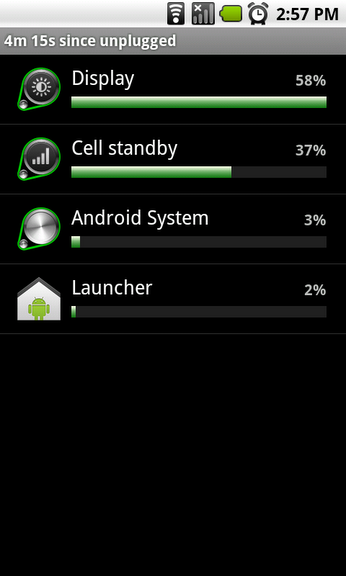
Figure 14: The battery screen, located under Settings -> About Phone
More detailed battery information can also be found in the phone testing interface which I'll talk about in a few moments. In daily use, one of the most draining things on any phone is the need to search for a signal in a low-signal or no-signal environment. In my office, I have absolutely no cell signal, which isn't too much of a hassle for me (since I have a desk phone) but is a hassle for my phone. My solution is to use a program named "Settings Profiles", which you can find in the market and costs a $3.95. I have a profile rule set so that if my phone is docked at my desk (e.g., docked during the hours I am normally at work, on the days I'm normally there) to put the phone into Airplane mode. This way as I sit at my desk and it sits in its cradle, no battery waste is occurring (or search time for a non-existent signal, which cuts down on GSM noise.
One issue that has been a big deal with many Nexus One owners (thankfully not me, however, it did hit another one of our editors) is the oft-blogged about signal issue, where the device will have signal and then suddenly drop from 3G to no data, then possibly back to 2G, maybe 3G, but never sustain. From what I can tell, this is a phone & network issue (as the few times it has happened to me have been localized to when I'm on specific cell networks). Whatever the cause (I suspect no one truly knows!), there are a few solutions. The first is to tell the phone to automatically register on the network by going to Settings -> Wireless & Networks -> Mobile Networks -> Network Operators. Another option is to enter HTC testing mode and change your data connection to WCDMA Only, thus forcing the device to stay in 3G, and not to drop. To get into Testing Mode, go to the dialer and enter *#*#4636#*#*. When the testing menu comes up, choose Phone, then change the drop-down box to WCDMA Only. This works fine if you're in an area saturated with 3G, however, if you then leave and go to a non-3G area, you'll need to change back to use 2G (EDGE) speeds. This data issue, more than any other, is the major CON of the phone for those users struck with it. For those who are not (such as me, 99% of the time), I suppose we just count ourselves lucky.
Bootloader Unlocking, Rooting, & Warranty Voiding!
Android is a Geek's operating system. If you know what you're doing (and are comfortable voiding your warrenty), Google has no problem letting you unlock the bootloader (or the program that runs the operating system at start-up) and doing whatever you like with it. This means custom ROMs are a possibility, image-style system backups are possible, and even the possibility of dual-booting your phone (into whatever ROM you'd like) is on the table. It all starts with unlocking the bootloader, which is easily done using steps Paul's published over at MoDaCo.
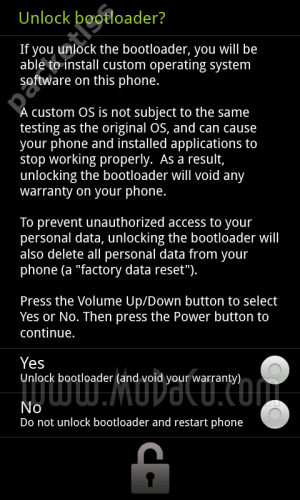
Figure 15: Once you hit Yes, there is no going back...
Once you decide to take the plunge, you're on your own warranty wise. HTC will not normally honor any warranty work on an unlocked phone (the phone displays the unlocked lock icon on boot-up, to proudly display your geek cred and/or craziness of voiding a warranty on a $500 phone). While there have been sporadic cases of people calling HTC and begging (and succeeding), assume that you're off in no-man's land with a potential $529 paperweight.
So given all that, why would you want to unlock your handset? Well, there area a few advantages:
- Ability to choose ROM images that may include newer components, fixes, or features (such as the CyanogenMOD);
- Ability to run an image-level backup of your phone (using Nandroid), letting you quickly restore to an earlier version of your data and phone;
- Ability to run utilities that require root permissions, such as SetCPU (for overclocking), screenshot applications, and wireless tethering;
- Geek cred like crazy - you're not jailbreaking illegally, you're rooting legally!
In the end you'll have to choose what you want to do: have cool features, or have an intact warranty. If you're skiddish about the whole unlocking thing, you may want to pick up a cheap, older Android device (such as a G1) and mess around with Root on that. Paying $100 for a device that, in a pinch, can be used as a wireless modem by slipping your SIM from your Nexus One to a G1 is a lot more economical and safer than voiding the Nexus One warranty I suppose.